
Download QuickBooks Desktop Pro – Powerful Accounting Software for Small and Mid‑Size Businesses
Overview: Why QuickBooks Desktop Pro Remains a Top Choice in 2025
QuickBooks Desktop Pro, developed by Intuit, has earned a reputation as a robust, all‑in‑one accounting solution for businesses that demand reliability, depth, and offline capability. Unlike many cloud‑only platforms, QuickBooks Desktop Pro installs directly on a Windows PC or Mac, letting you manage payroll, accounts payable and receivable, expense tracking, and project accounting without an internet connection. This offline resilience is especially valuable for firms in areas with spotty broadband or for accountants who need guaranteed access during tax season. While the price point sits above entry‑level options, the software justifies the cost with a feature set that rivals enterprise‑grade products. Users can link bank accounts, automate invoice creation, and sync data with popular payment processors such as PayPal, Square, and American Express. The integrated workflow engine streamlines approvals, payment reminders, and purchase‑order tagging, reducing manual entry and the risk of errors. In short, QuickBooks Desktop Pro offers a comprehensive accounting suite that balances power with the familiarity of a traditional desktop environment.
Key Features that Set QuickBooks Desktop Pro Apart
- Bank Account Reconciliation & Automated Transactions – Connect directly to bank feeds, schedule automated deposits, and reconcile statements with a few clicks.
- Full Payroll Management – Process employee wages, calculate taxes, generate pay stubs, and file quarterly filings from within the same application.
- Project Accounting & Job Costing – Assign expenses and labor to specific jobs, track profitability, and generate detailed project reports.
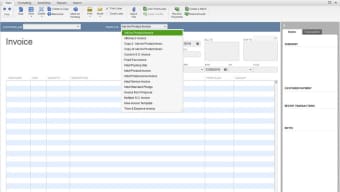
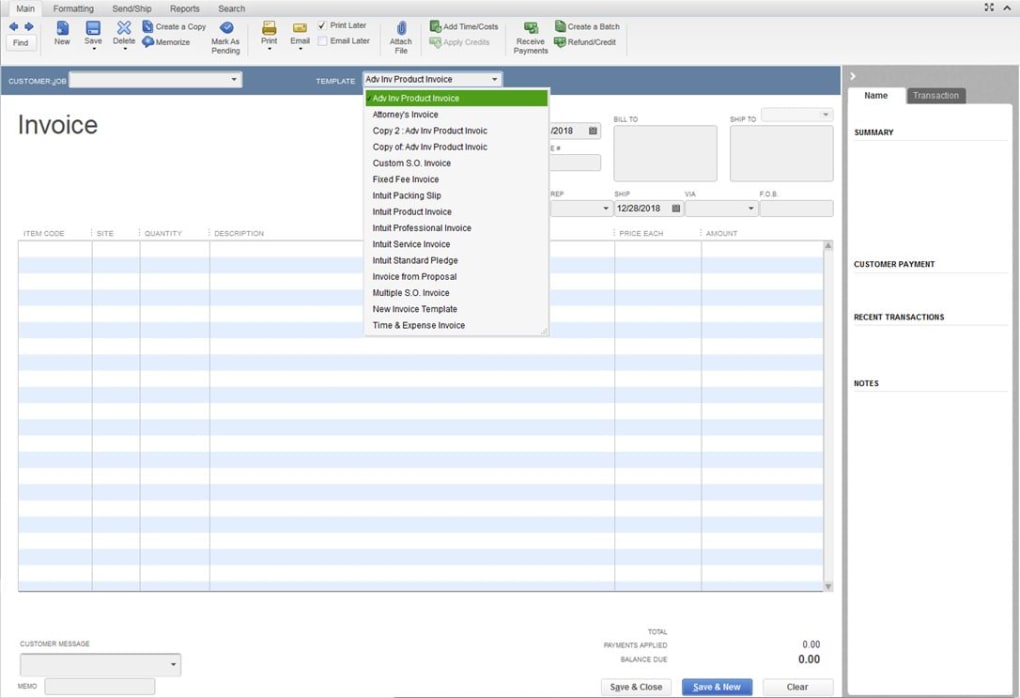
- Invoice & Billing Automation – Create professional invoices, batch multiple invoices into a single email, and set up recurring billing cycles.
- Purchase Order Integration – Add PO numbers to emails, track vendor commitments, and automatically match PO data with received invoices.
- Payment Reminders & Late Fee Automation – Send customizable reminders, apply late fees automatically, and reduce days sales outstanding.
- Third‑Party App Sync – Seamlessly import data from PayPal, Square, American Express, and other popular services, keeping your books up‑to‑date.
- Offline Capability with Cloud Upgrade Path – Work offline on core accounting tasks and later sync to QuickBooks Online for remote access.
- Robust Reporting Suite – Generate profit‑and‑loss statements, balance sheets, cash‑flow reports, and custom dashboards tailored to your industry.
- Secure Data Storage & Backup – Local encrypted storage with optional automatic backup to an external drive or cloud service.
Each of these features is designed to eliminate the need for multiple disjointed tools. For example, the combination of project accounting and payroll means that labor costs flow directly into job profitability reports, giving managers real‑time insight into margin performance. The ability to batch invoices reduces inbox clutter and improves client communication, while the integrated bank reconciliation minimizes the month‑end closing timeline. Together, these capabilities create a cohesive ecosystem that helps businesses maintain accurate books, stay compliant, and make data‑driven decisions.
Installation & Usage: Getting Started Quickly and Securely
Step‑by‑Step Installation Process
Installing QuickBooks Desktop Pro is straightforward, but following best practices ensures a smooth experience and protects your financial data.
- System Requirements Check – Verify that your computer meets the minimum specs: Windows 10 (64‑bit) or macOS 11 or later, 4 GB RAM (8 GB recommended), 2.5 GHz processor, and at least 2 GB of free disk space.
- Download the Installer – Visit Intuit’s official website, locate the QuickBooks Desktop Pro product page, and click the “Download Free Trial” button. The installer file (usually
.exefor Windows or.dmgfor Mac) will be saved to your Downloads folder. - Run the Installer as Administrator – Right‑click the file and select “Run as administrator.” This grants the program permission to write necessary registry entries and create service files.
- Accept the License Agreement – Read the End‑User License Agreement (EULA), check the acceptance box, and click “Next.”
- Choose Installation Type – Opt for “Custom & Network Options” if you plan to share the license across multiple workstations, or “Typical” for a single‑user setup.
- Enter Product Key – Provide the 25‑character license key you received via email after purchase. This activates your copy and unlocks all features.
- Complete Installation & Restart – Once the progress bar reaches 100 %, click “Finish” and restart your computer to finalize the setup.
First‑Run Configuration and Daily Workflow
After rebooting, launch QuickBooks Desktop Pro. The initial wizard guides you through company file creation:
- Company Information – Enter legal name, address, tax ID, and fiscal year settings.
- Chart of Accounts – Choose a pre‑built industry template (e.g., retail, professional services) or import an existing chart from CSV.
- Bank Feed Setup – Connect your primary checking account using secure OAuth. QuickBooks will automatically pull transactions for the past 90 days.
- Payroll Preferences – Set pay schedules, employee classifications, and tax filing options. Intuit offers a built‑in payroll service that can be activated later.
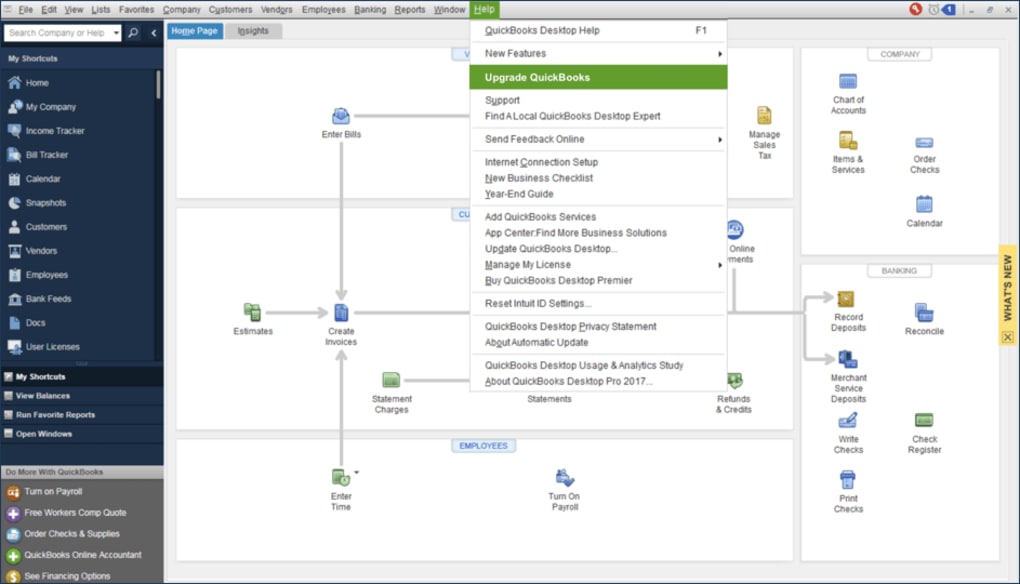
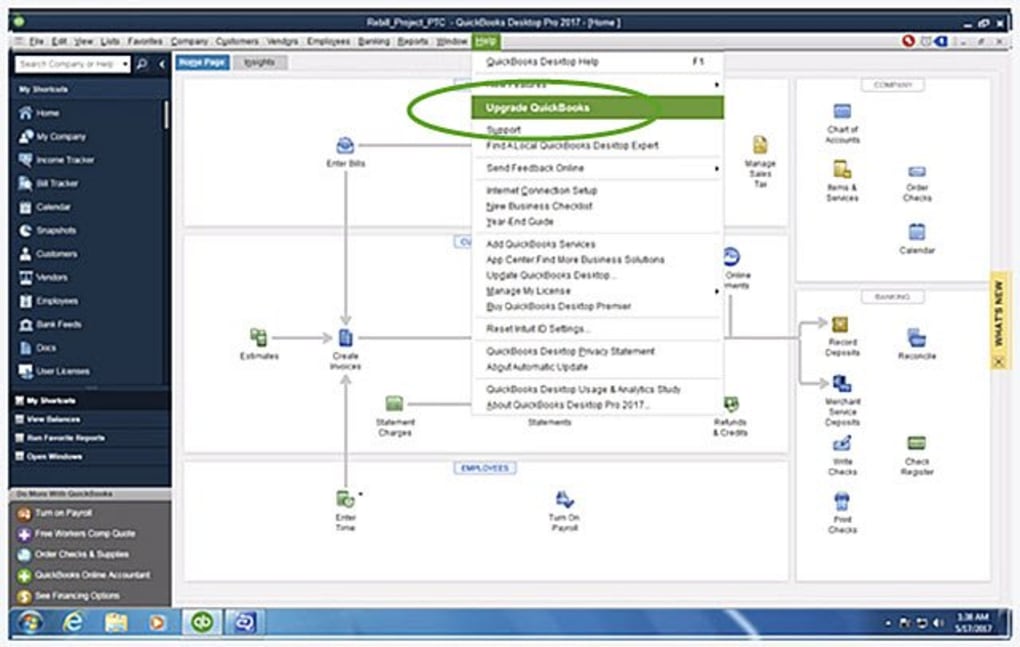
Day‑to‑day, most users spend time in three core screens: Dashboard (quick view of cash flow), Customers & Jobs (invoice creation and payment tracking), and Vendors (bill entry and expense management). The intuitive ribbon interface mirrors Microsoft Office, reducing the learning curve for users familiar with Excel. For advanced users, the “Custom Reports” wizard allows you to drag‑and‑drop fields, filter by date ranges, and schedule automatic email delivery.
Security best practices include enabling two‑factor authentication (2FA) for the Intuit account, setting strong local admin passwords, and configuring automatic nightly backups to an external drive or secure cloud bucket. By following these steps, you’ll have a fully operational, secure accounting environment ready for immediate use.
Compatibility, Pros & Cons, and Frequently Asked Questions
Operating System Compatibility
QuickBooks Desktop Pro is compatible with Windows 10 (64‑bit) and later, as well as macOS 11 (Big Sur) and newer. The Windows version offers the most complete feature set, including advanced payroll modules and industry‑specific templates. The Mac version mirrors core functionalities but may lack some Windows‑only add‑ons such as certain third‑party integrations. For businesses that require cross‑platform collaboration, Intuit provides a seamless upgrade path to QuickBooks Online, allowing Mac users to access the same data via a secure web portal.
Pros and Cons
- Pros
- Full offline capability ensures uninterrupted work during internet outages.
- Comprehensive feature set covering payroll, project accounting, and advanced reporting.
- Robust integration with major payment processors and bank feeds.
- Highly customizable invoices and automated payment reminders.
- Strong data security with local encryption and optional cloud backups.
- Cons
- Higher upfront cost compared with entry‑level cloud solutions.
- Steeper learning curve; new users may require training or consulting.
- Windows version offers more features than the Mac counterpart.
- Regular updates require manual installation unless paired with QuickBooks Online.
- Limited mobile access without the cloud upgrade.
FAQ – QuickBooks Desktop Pro
Can I use QuickBooks Desktop Pro on multiple computers?
Yes. With the “Custom & Network Options” installation, you can host a company file on a server and allow up to three simultaneous users. Each additional user requires a separate license.
Is there a free trial available?
Intuit offers a 30‑day free trial that includes all core features except payroll. You can download the trial from the official QuickBooks website and evaluate the software before purchasing.
How often are updates released, and are they mandatory?
Intuit releases quarterly updates that improve security, add new features, and fix bugs. While updates are not forced, using the latest version is strongly recommended to stay compliant with tax regulations.
Can I migrate my data to QuickBooks Online later?
Yes. QuickBooks Desktop Pro includes a built‑in export tool that converts your company file to the QuickBooks Online format. The migration process preserves most transactions, customers, and vendor data, though some custom reports may need rebuilding.
What kind of support does Intuit provide?
Intuit offers phone, chat, and email support for licensed users, as well as a comprehensive knowledge base, community forums, and optional on‑site training packages for an additional fee.
Conclusion & Call to Action
QuickBooks Desktop Pro stands out as a powerful, feature‑rich accounting platform that balances offline reliability with modern integration capabilities. Its extensive toolset—ranging from bank reconciliation to project‑level cost tracking—makes it suitable for small businesses that are ready to scale and for mid‑size firms that need granular financial control. While the price point and learning curve may deter very small operations or users new to accounting software, the long‑term ROI is evident in reduced manual entry, fewer errors, and richer insights into profitability. If your organization values a stable desktop environment, needs advanced payroll and job costing, and is prepared to invest in a comprehensive solution, QuickBooks Desktop Pro is a compelling choice.
Ready to experience the power of QuickBooks Desktop Pro? Download the free 30‑day trial now, set up your company file, and see how the integrated workflow can transform your financial management. For businesses that eventually require remote access, the seamless migration path to QuickBooks Online ensures you won’t outgrow the platform.
Pros: Offline reliability, extensive features, strong integration, detailed reporting.
Cons: Higher cost, steeper learning curve, limited mobile access without cloud upgrade.







